
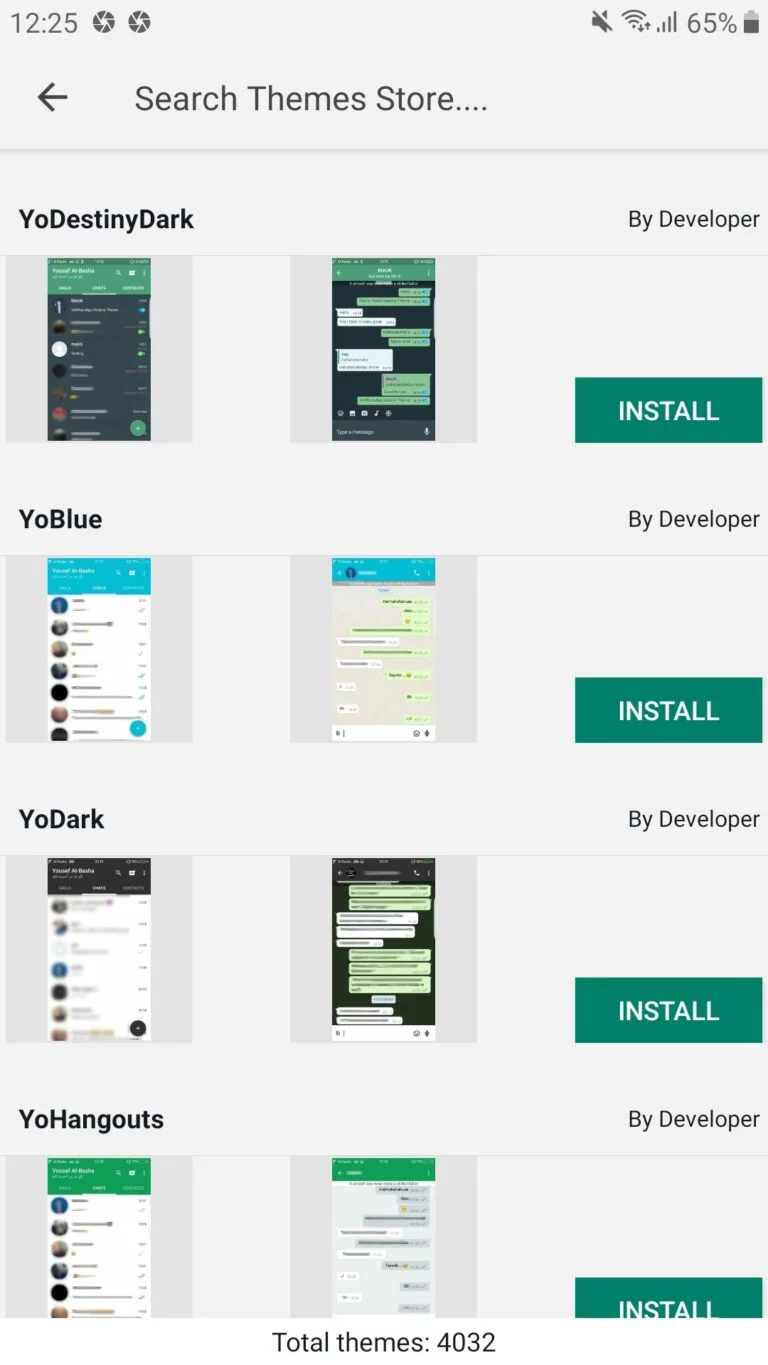
How to Customize Themes in GB WhatsApp
If you want GB WhatsApp to look different from the standard WhatsApp layout, theme customization is the feature to explore. This guide explains what themes change, how to check the options available in your app version, how to apply and reset a theme, and what to do when a theme does not display correctly.
What Theme Customization Does in GB WhatsApp
Theme options change the overall appearance of the app rather than its core functions. Depending on your version, a theme may adjust:
- Colors of the chat screen, header, and background
- Fonts and text appearance
- Shapes and styles of bubbles, ticks, and buttons
- The general light or dark look of the interface
Themes are a visual layer. They do not change how messages are delivered, and a broken theme does not usually affect your chat data, which makes experimenting relatively low risk compared to other modifications.
Check the Theme Options Available in Your Version
Theme features vary between GB WhatsApp builds, and menus change over time. Before following any tutorial, confirm what your own installation actually offers.
- Open GB WhatsApp and go to its settings area.
- Look for sections related to appearance, themes, or customization. The exact names differ between versions, so browse any menu that mentions look, style, or display.
- Note whether your version includes a built-in theme list, manual color controls, or both.
- If you cannot find any theme option, your current version may not include one. Check the release notes for your build or review the versions available on the GB WhatsApp download page.
How to Browse and Apply a Theme
If your version includes a theme section, the general process looks like this:
- Open the theme or appearance section inside the app’s settings.
- Browse the available designs and preview any option that interests you before applying it.
- Select the theme and confirm your choice when prompted.
- Wait for the app to reload its interface, then check the chat list, chat screen, and settings pages for consistent styling.
- If your version also offers manual controls, adjust individual colors or fonts afterward to fine-tune the result.
Prefer themes that come from within the app itself. Files downloaded from unknown websites can contain unwanted code, so treat third-party theme downloads with the same caution as any other file from an unverified source.
How to Restore the Default Appearance
If a theme makes the app hard to read or use, you can usually go back to the standard look.
- Return to the same theme or appearance section where you applied the design.
- Look for an option labeled along the lines of default, reset, or restore appearance.
- Confirm the reset and let the app reload.
- If individual colors remain changed, reset those controls one by one, or clear the app’s customization settings where your version allows it.
Troubleshooting Theme Problems
When a theme fails to apply or displays incorrectly, work through these checks:
- Theme does nothing after applying: Restart the app fully. Some versions need a complete relaunch to redraw the interface.
- Text unreadable or colors clashing: Reopen the theme section and adjust contrast-related settings, or restore the default appearance.
- Theme resets after an update: App updates can overwrite appearance settings. Reapply your theme after updating, and note your preferences so you can restore them quickly.
- Settings missing after an update: The new build may have moved or removed the option. Check its release notes instead of assuming a bug.
Theme changes affect the whole interface. If you only want to change how the app looks from your phone’s home screen, that is a separate customization covered in our guide on how to change the GB WhatsApp app icon.
Frequently Asked Questions
Do GB WhatsApp themes affect my messages or contacts?
No. Themes are visual only. Your chats, contacts, and media remain unchanged when you apply or remove a theme.
Why did my theme disappear after updating the app?
Updates can reset customization settings. Reapply the theme after updating, and keep a note of your preferred design.
Are theme files from third-party websites safe to use?
There is no guarantee. Files from unverified sources can contain unwanted code, so prefer options built into the app itself.
Can I create my own theme?
Some versions allow manual color and font adjustments, which is the closest option to building a custom look. Available controls depend entirely on your app version.